
Accurate reporting is the lifeblood of profitable paid media. If you work in campaign operations, you already know how slow and error-prone manual exports can be—and how quickly a “last week’s CSV” becomes yesterday’s fiction.
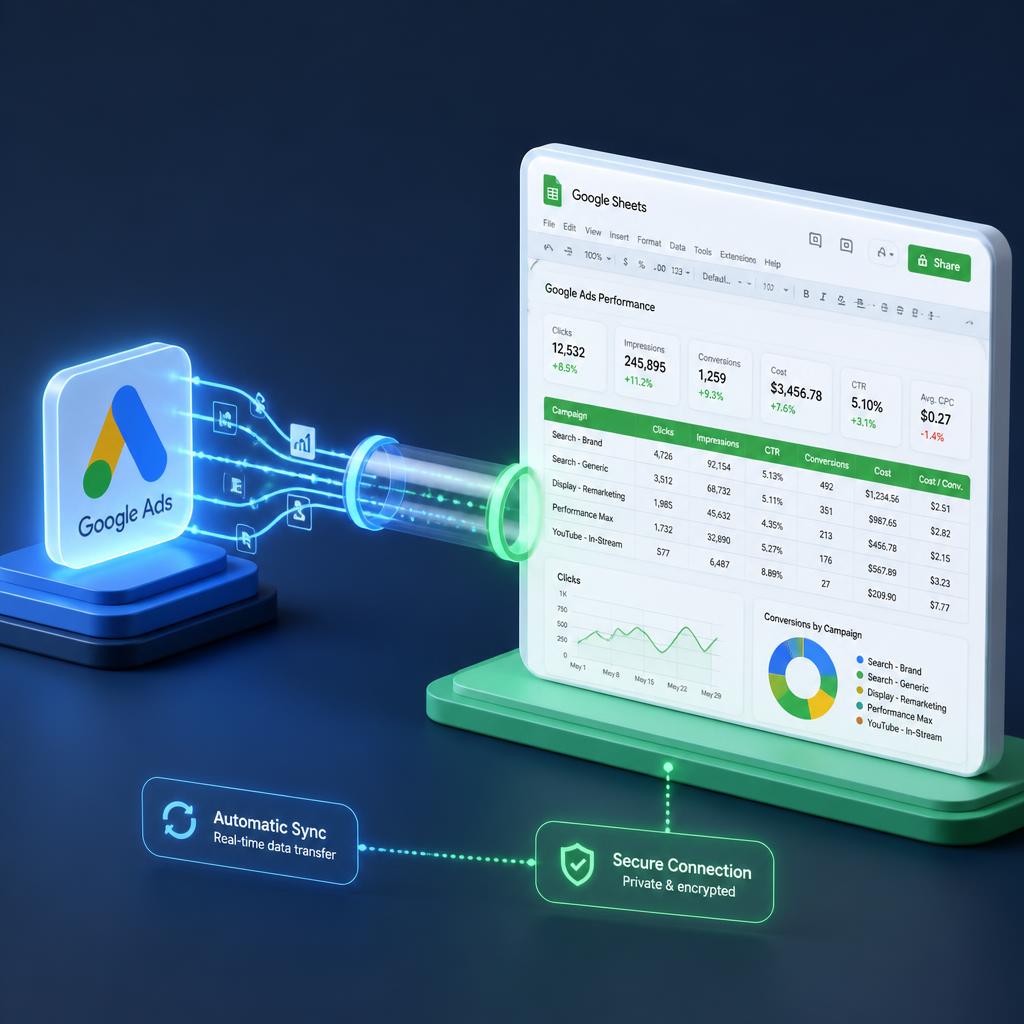
The cleaner fix is to connect the platforms directly. This guide shows how to link google ads to google sheets reporting so dashboards refresh on a schedule, stakeholders get live numbers without Ads admin access, and your team spends time on decisions instead of copy-paste.
Whether you manage accounts in-house or with a Google Ads agency, automated Sheets reporting is one of the highest-leverage ops upgrades you can make.
Why Link Google Ads to Google Sheets?
- Time savings: Eliminate repetitive manual exports.
- Scheduled refresh: Pull metrics hourly, daily, or weekly without babysitting the UI.
- Custom analysis: Build formulas for ROAS, CPA, blended CAC, and cohort views the Ads UI does not show cleanly.
- Safer sharing: Give clients and executives a dashboard link without granting Google Ads admin rights.
If reporting reveals rising cost with flat conversions, pair the dashboard with a proper Google Ads audit—and keep day-to-day ownership inside disciplined Google Ads management.
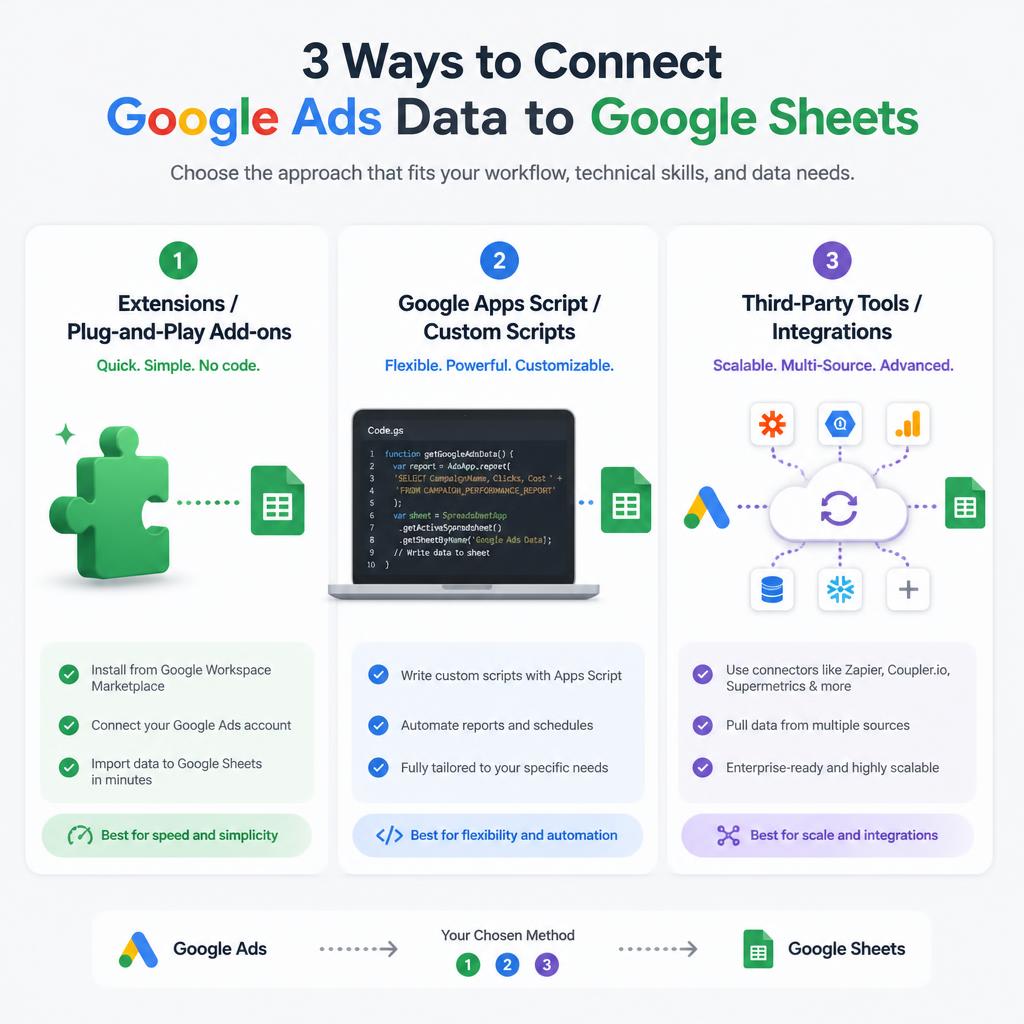
Three Ways to Connect Google Ads to Google Sheets
1. Official “Google Ads” Add-on for Google Sheets
Google’s free extension pulls account performance into a spreadsheet with no code. For most single-account teams, this is the fastest way to link google ads to google sheets reporting.
2. Google Ads Scripts
Scripts (JavaScript in the Ads account) can write custom report layouts, alert thresholds, and multi-sheet templates. More flexible than the add-on; requires light coding or a trusted template.
3. Third-Party Connectors
Tools such as Supermetrics, Dataslayer, Catchr, Windsor.ai, and Funnel.io shine when agencies blend Google Ads with Meta, Analytics, CRM, and finance data—or when many accounts must refresh under one ops workflow. Useful if you rent google ads account environments and need centralized reporting ownership.
Step-by-Step: Official Google Ads Extension
Step 1: Install the Add-on
- Open a new Google Sheet.
- Go to Extensions → Add-ons → Get add-ons.
- Search for Google Ads, install the official extension, and authorize the required accounts.
Step 2: Create a New Report
- Open Extensions → Google Ads → Create a new report.
- Select the target Google Ads account.
- Set the date range (Last 7 days, This month, custom, and so on).
Step 3: Choose Dimensions and Metrics
Typical starter fields for a clean link google ads to google sheets reporting dashboard:
- Dimensions: Campaign, Ad group, Keyword, Date, Device, Network
- Metrics: Impressions, Clicks, CTR, Cost, Conversions, Cost/conv., Conversion value, ROAS
Click Create Report to populate the sheet with live data. For intent-heavy accounts, keep a dedicated tab for Google Search Ads queries and another for Shopping or PMax so diagnosis stays clear.
Step 4: Schedule Automatic Updates
- Open the Schedule tab in the add-on sidebar.
- Enable automatic updates and choose Hourly, Daily, or Weekly.
- Save. Reports will refresh in the background.
Comparison: Add-on vs Scripts vs Third-Party Tools
- Official add-on: Free, fast, ideal for single accounts and simple client dashboards.
- Scripts: Custom layouts and logic; needs JavaScript comfort and ongoing maintenance.
- Third-party connectors: Paid; best for multi-channel agency reporting and blended attribution views.
A google ads agency dubai portfolio often starts with the native add-on for speed, then migrates high-spend accounts to connectors once cross-channel joins become mandatory.
Essential Metrics for Your Reporting Dashboard
- CTR: Ad relevance and query match quality.
- Conversion rate: Share of clicks that complete a valued action.
- CPA: Average cost to produce one conversion.
- ROAS / conversion value: Revenue returned per ad dollar (ecommerce and value-based accounts).
- Search impression share & lost IS (budget/rank): Explains whether growth is limited by money or competitiveness.
Build calculated columns in Sheets (for example, blended CPA across Search + PMax, or week-over-week deltas). Raw exports alone are not a reporting system.
From Dashboards to Action
Linking platforms is only half the job. When Sheets shows cost rising and conversions stalling, investigate search terms, landing pages, and conversion definitions before changing bids. If the account needs structural cleanup rather than another chart, a focused Google Ads tune-up usually beats another export schedule. An Adwords agency worth hiring will treat Sheets as a decision surface—not a screenshot factory.
Final Takeaway
Learning how to link google ads to google sheets reporting removes manual overhead and keeps optimization grounded in fresh data. Start with the official add-on, schedule daily refreshes, lock KPIs that match business outcomes, then graduate to Scripts or connectors only when complexity demands it.
Frequently Asked Questions
Is the official Google Ads extension for Google Sheets free?
Yes. Google’s official add-on is free, with no charge for report volume or refresh frequency within normal product limits.
How often can data refresh automatically in Google Sheets?
You can schedule updates hourly, daily, or weekly so dashboards stay current without manual exports.
Do I need coding knowledge to link Google Ads to Google Sheets?
No for the official add-on or most third-party connectors. Google Ads Scripts do require basic JavaScript.
What is the main difference between the native add-on and third-party tools?
The native add-on is free and excellent for single accounts. Third-party tools are paid but combine Google Ads with other channels and scale better across large agency portfolios.