
Strong PPC is not only about bidding on the right terms. It is also about stopping ads from showing for queries that will never convert. Irrelevant clicks drain budget, weaken Quality Score signals, and teach Smart Bidding the wrong audience.
This negative keyword lists ultimate guide google ads marketers need covers how negatives work, how match types differ from positive keywords, how to build shared lists, and how to keep exclusions from accidentally blocking profitable traffic—discipline every serious Google Ads agency applies before scaling spend.
What Are Negative Keywords and Why They Matter
Negative keywords tell Google when not to show your ads. If a search contains a blocked term (according to the match type you chose), the ad is suppressed and the budget is protected.
Well-managed negatives typically improve:
- Wasted spend: Fewer clicks from free seekers, job hunters, and off-topic researchers
- CTR: Ads appear for more relevant audiences
- Quality Score / CPC: Better relevance can improve auction competitiveness
- Conversion rate: Traffic skews toward buying intent
Negatives are foundational Google Ads optimization—especially on high-CPC Google Search Ads where every irrelevant click is expensive.
Negative Match Types (They Are Not Like Positive Match Types)
Critical rule: negative match types do not automatically cover close variants, singular/plural forms, or misspellings. You must add those variations yourself.
- Negative broad: Blocks queries that contain all negative words in any order (behavior differs from positive broad).
- Negative phrase: Blocks queries that include the phrase in order.
- Negative exact: Blocks that exact query (and close variations are still not guaranteed the way positive exact behaves).
When in doubt, start tighter (phrase/exact) for ambiguous words, and use broad negatives only for clearly toxic terms like “free,” “job,” or “torrent.”
Campaign Negatives vs. Shared Negative Keyword Lists
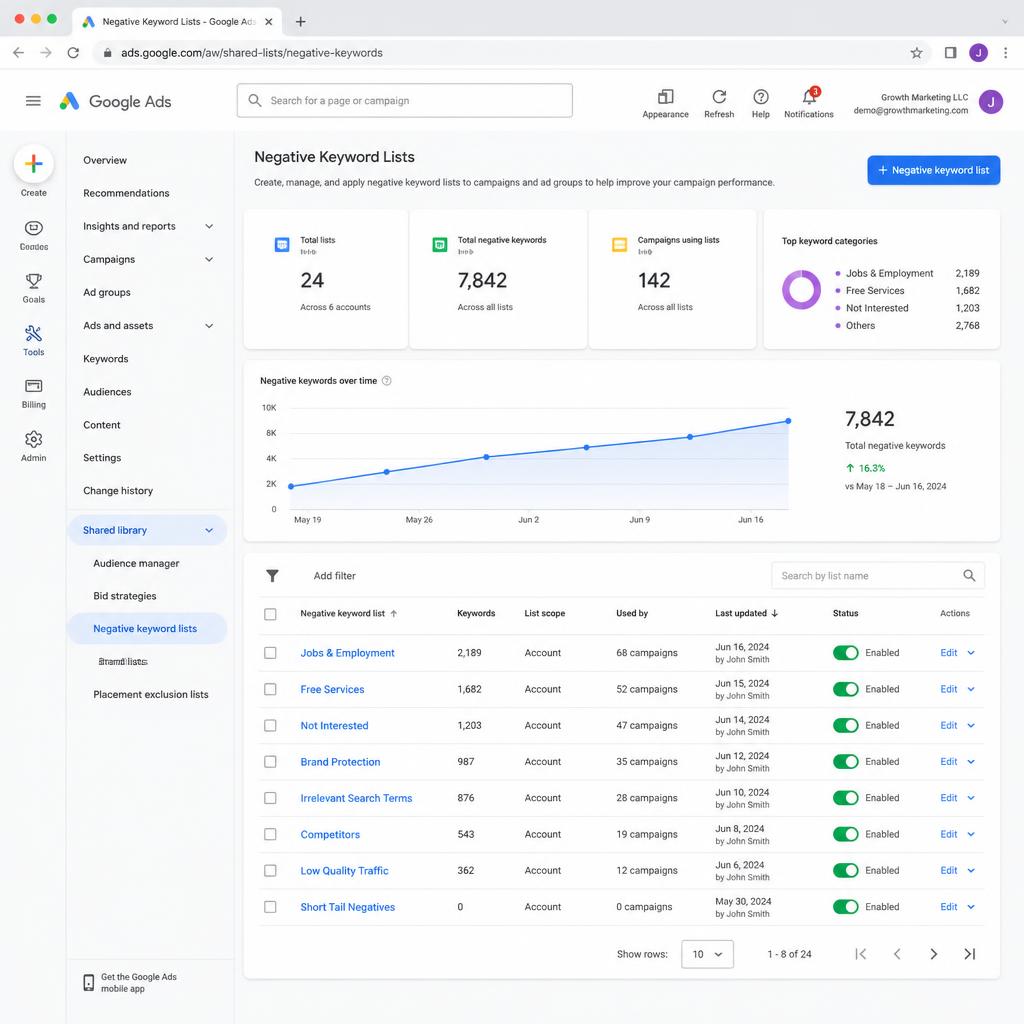
You can add negatives at ad group or campaign level, but large accounts become unmanageable that way. Shared negative keyword lists in the Shared Library let you maintain one master set and apply it to many campaigns. Update the list once; every linked campaign inherits the change.
Centralized lists are one of the fastest wins in a Google Ads tune-up—especially when inherited accounts (or setups where teams rent google ads account access) have years of inconsistent campaign-level junk.
How to Create and Apply Negative Keyword Lists
- In Google Ads, open Tools & settings and go to Shared library → Negative keyword lists (wording can vary slightly by UI).
- Click +, name the list clearly (for example,
Master Negatives — Low Intent), and add terms with intentional match types. - Save the list.
- Select the list → Apply to campaigns → choose targets → save.
Apply master lists across Search first, then extend carefully to other eligible campaign types. This negative keyword lists ultimate guide google ads workflow keeps exclusions consistent without editing fifty campaigns by hand.

Master Negative Categories Every Account Needs
1. Free and Low-Intent Seekers
free, cheap, freeware, crack, torrent, open source, diy, sample
2. Employment and Career Searches
job, jobs, career, hiring, internship, salary, resume, recruiter
3. Educational / Informational (When You Sell Services or Products)
course, class, tutorial, definition, wiki, examples, pdf, meaning
4. Bargain / Wholesale Mismatch (If You Are Not That Seller)
wholesale, used, second hand, clearance, liquidation, ebay
Always adapt lists to your offer. A clearance ecommerce brand should not blindly exclude “clearance.” A google ads agency dubai account serving enterprise clients may need aggressive “free/DIY” blocks that a consumer SaaS freemium product would never use.
Advanced Uses: Cross-Campaign Negatives and Conflict Control
- Brand isolation: Add brand terms as negatives in generic campaigns so brand traffic stays in the brand campaign.
- Funnel isolation: Keep informational queries out of high-intent commercial campaigns.
- Conflict checks: After large list updates, review Recommendations and Search Terms to ensure a broad negative is not blocking a core positive keyword.
If waste is widespread and lists are chaotic, start with a Google Ads audit, then fold cleaned lists into ongoing Google Ads management. An Adwords agency that never reviews Search Terms is effectively leaving the account open to continuous leakage.
Maintenance Cadence
For active accounts, review Search Terms weekly or bi-weekly. Mature, stable accounts can often move to monthly. Add new waste terms to the shared list immediately; do not wait for a quarterly “cleanup project.”
Final Takeaway
Mastering this negative keyword lists ultimate guide google ads approach means treating exclusions as living account infrastructure: shared lists, correct match types, routine Search Term audits, and conflict checks. Do that consistently and campaigns stay lean, targeted, and profitable as you scale.
Frequently Asked Questions
What is the difference between a negative keyword and a negative keyword list?
A negative keyword is a single exclusion on an ad group or campaign. A negative keyword list is a Shared Library collection you can apply to many campaigns at once and update centrally.
Do negative keywords cover typos or close variants?
No. Unlike many positive keyword behaviors, negatives do not automatically cover close variants, misspellings, or plurals. Add important variations manually.
How often should I audit search terms for new negatives?
Active accounts: weekly or bi-weekly. Smaller or mature accounts: monthly is often enough to catch emerging non-converting queries.
Can negative keywords block my ads from showing entirely?
Yes. A broad negative that conflicts with a primary positive keyword can suppress ads for valuable queries. Always check for conflicts after bulk updates.